Table
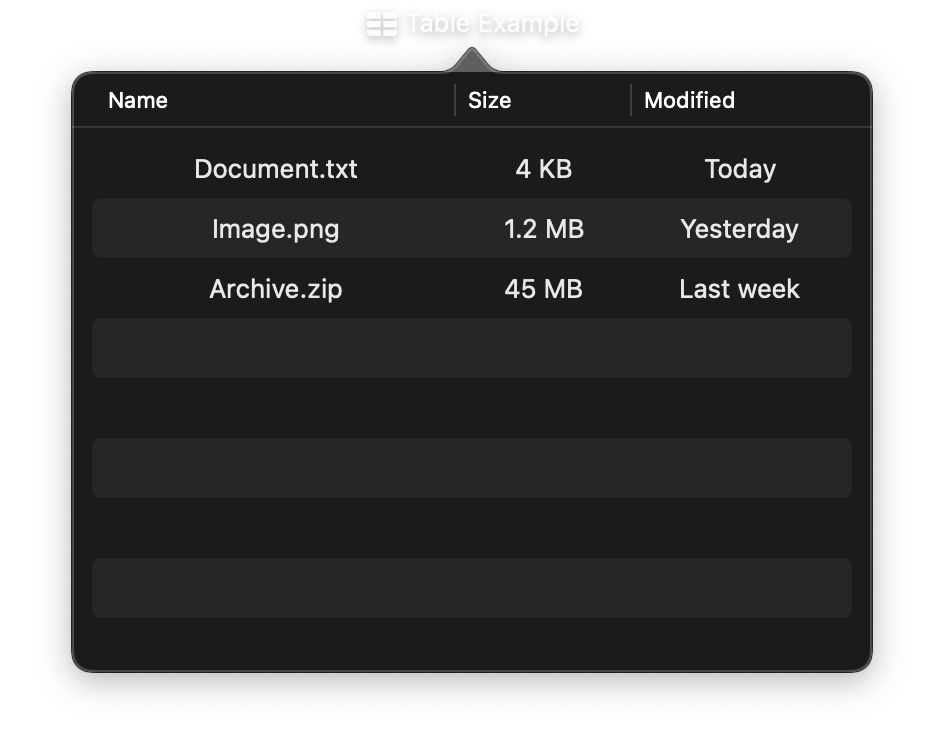
A native macOS table view for displaying structured data in rows and columns. Table renders a collection of Python objects using declarative column definitions, with built-in support for column headers, sorting, selection, and custom cell views.
Backed by AppKit's NSTableView for native performance with large datasets.
Constructor
nib.Table(
    rows,
    columns,
    selection=None,
    on_select=None,
    row_id=None,
    **modifiers,
)
Parameters
| Parameter | Type | Default | Description |
|---|---|---|---|
rows |
Sequence |
() |
The data backing the table. Any sequence of Python objects (dicts, dataclasses, named tuples, etc.). |
columns |
list[TableColumn] |
None |
List of TableColumn definitions specifying how each column extracts, displays, and sorts data. |
selection |
Any | list[Any] |
None |
Currently selected row object(s), or None. |
on_select |
Callable[[list[Any]], None] |
None |
Callback when selection changes. Receives a list of the selected row objects. |
row_id |
Callable[[Any], Any] |
None |
Stable identity for a row, for example lambda r: r["id"]. Without it rows are identified by index and selection matches by equality. |
**modifiers |
Common view modifiers: width, height, padding, background, etc. |
TableColumn
Defines how a single column behaves and renders.
nib.TableColumn(
    title,
    *,
    key=None,
    cell=None,
    width=None,
    alignment="leading",
    sortable=True,
)
| Parameter | Type | Default | Description |
|---|---|---|---|
title |
str |
(required) | Column header text. |
key |
Callable[[Any], Any] |
None |
Lambda that extracts a value from a row object. Used for default text rendering and sorting. |
cell |
Callable[[Any], View] |
None |
Custom cell renderer. Receives a row object, returns a View. If omitted, Text(str(key(row))) is used. |
width |
ColumnWidth |
None |
Column width specification. See ColumnWidth below. |
alignment |
str |
"leading" |
Text alignment within the column. Options: "leading", "center", "trailing". |
sortable |
bool |
True |
Whether the column header is clickable for sorting. Requires key to be set. |
ColumnWidth
Controls column sizing. Use the static constructors:
nib.ColumnWidth.fixed(100)                          # Exactly 100pt wide
nib.ColumnWidth.range(min=80, ideal=150, max=300)   # Flexible with constraints
| Method | Description |
|---|---|
ColumnWidth.fixed(px) |
Fixed width in points. The column will not resize. |
ColumnWidth.range(min, ideal, max) |
Flexible width. The column resizes between min and max, preferring ideal. |
Mutable Properties
| Property | Type | Description |
|---|---|---|
rows |
Sequence |
Get or set the row data. Triggers cell rebuild and UI update. |
columns |
list[TableColumn] |
Get or set the column definitions. Triggers cell rebuild and UI update. |
selection |
Any | list[Any] |
Get or set the selected row object(s). Triggers a UI update. |
How It Works
Each cell in the table is a nib View. For every row and column combination, the Table computes a cell view:
- If the column has a
celllambda, it callscell(row)to get a custom View. - Otherwise, if the column has a
keylambda, it rendersText(str(key(row))). - If neither is provided, it falls back to
Text(str(row)).
Sorting is handled automatically when you click a column header. The Table uses the column's key lambda to sort rows in Python, then rebuilds the cell views.
Examples
File browser table
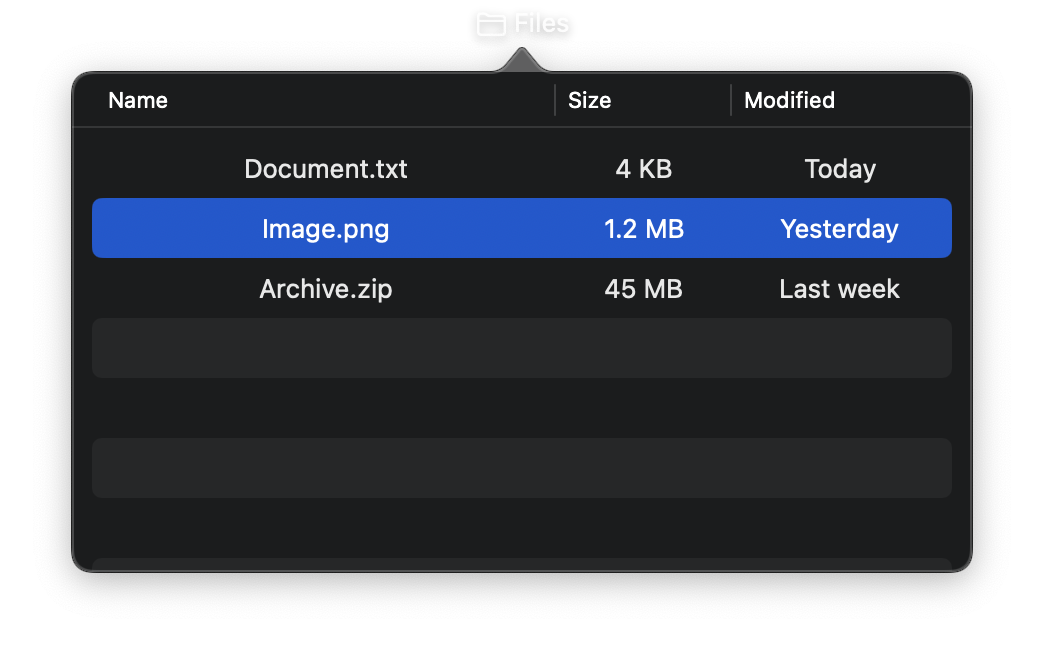
import nib


def main(app: nib.App):
    app.title = "Files"
    app.icon = nib.SFSymbol("folder")
    app.width = 450
    app.height = 250

    files = [
        {"name": "Document.txt", "size": "4 KB", "modified": "Today"},
        {"name": "Image.png", "size": "1.2 MB", "modified": "Yesterday"},
        {"name": "Archive.zip", "size": "45 MB", "modified": "Last week"},
    ]

    app.build(
        nib.Table(
            rows=files,
            columns=[
                nib.TableColumn(
                    "Name",
                    key=lambda f: f["name"],
                    width=nib.ColumnWidth.range(min=50, ideal=150, max=300),
                ),
                nib.TableColumn(
                    "Size",
                    key=lambda f: f["size"],
                    alignment="trailing",
                    width=nib.ColumnWidth.fixed(80),
                ),
                nib.TableColumn(
                    "Modified",
                    key=lambda f: f["modified"],
                    width=nib.ColumnWidth.fixed(100),
                ),
            ],
            on_select=lambda rows: print(f"Selected: {[r['name'] for r in rows]}"),
        )
    )


nib.run(main)
Custom cell views
Use the cell parameter to render any nib View in a cell:
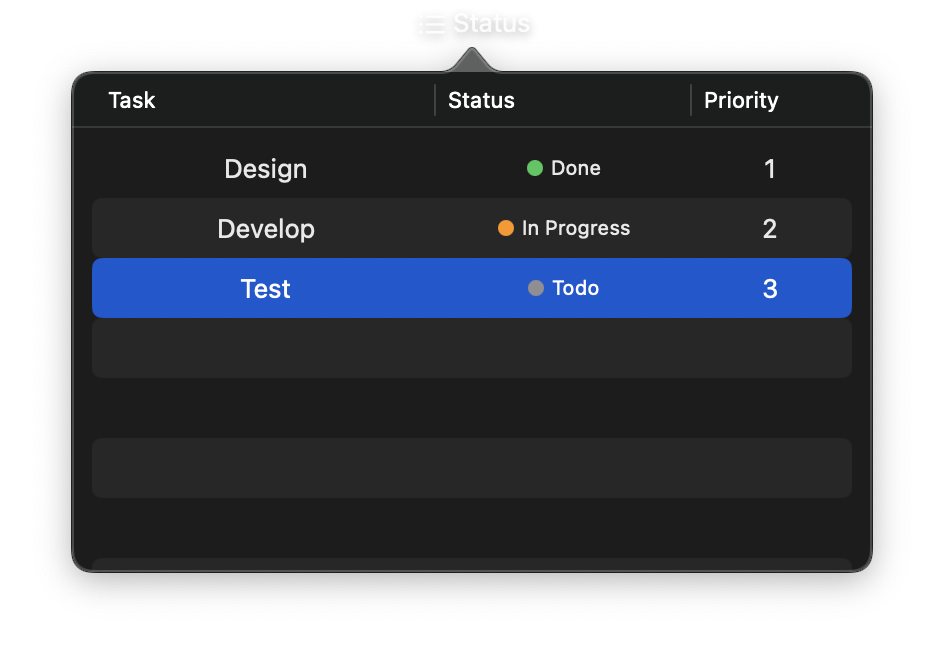
import nib


def main(app: nib.App):
    app.title = "Status"
    app.icon = nib.SFSymbol("list.bullet")
    app.width = 400
    app.height = 250

    tasks = [
        {"name": "Design", "status": "done", "priority": 1},
        {"name": "Develop", "status": "in_progress", "priority": 2},
        {"name": "Test", "status": "todo", "priority": 3},
    ]

    STATUS_COLORS = {
        "done": "#34C759",
        "in_progress": "#FF9500",
        "todo": "#8E8E93",
    }

    app.build(
        nib.Table(
            rows=tasks,
            columns=[
                nib.TableColumn(
                    "Task",
                    key=lambda t: t["name"],
                    width=nib.ColumnWidth.range(min=80, ideal=150, max=250),
                ),
                nib.TableColumn(
                    "Status",
                    key=lambda t: t["status"],
                    cell=lambda t: nib.HStack(
                        controls=[
                            nib.Circle(
                                fill=STATUS_COLORS.get(t["status"], "#888"),
                                width=8,
                                height=8,
                            ),
                            nib.Text(
                                t["status"].replace("_", " ").title(),
                                font=nib.Font.CAPTION,
                            ),
                        ],
                        spacing=4,
                    ),
                    width=nib.ColumnWidth.fixed(120),
                ),
                nib.TableColumn(
                    "Priority",
                    key=lambda t: t["priority"],
                    alignment="center",
                    width=nib.ColumnWidth.fixed(70),
                ),
            ],
        )
    )


nib.run(main)